

How to set up a new fiscal year in Epicor Kinetic
New fiscal year to set up? Let Epicor generate the periods. Here is how to set up a new fiscal year in Epicor Kinetic, in 4 steps, starting in Fiscal Calendar.
The steps
Open Fiscal Calendar
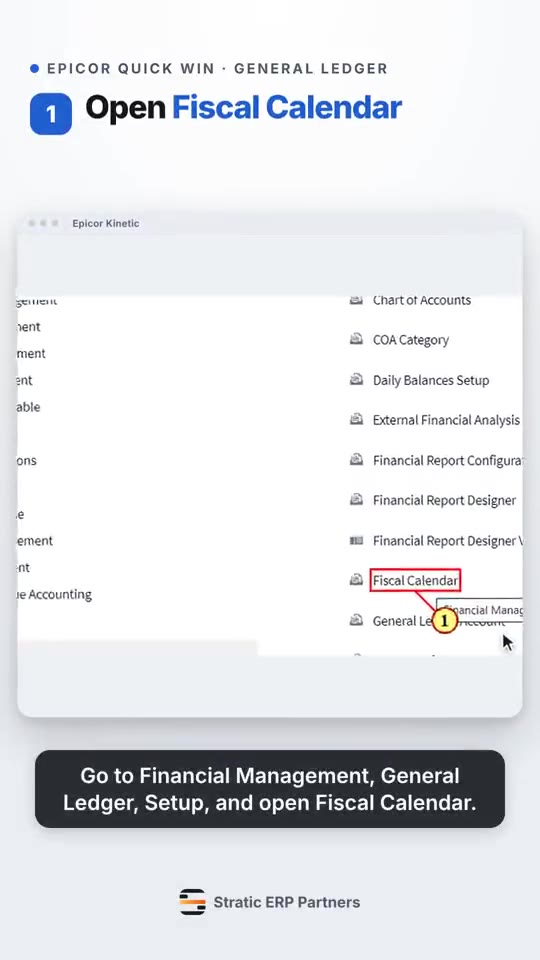
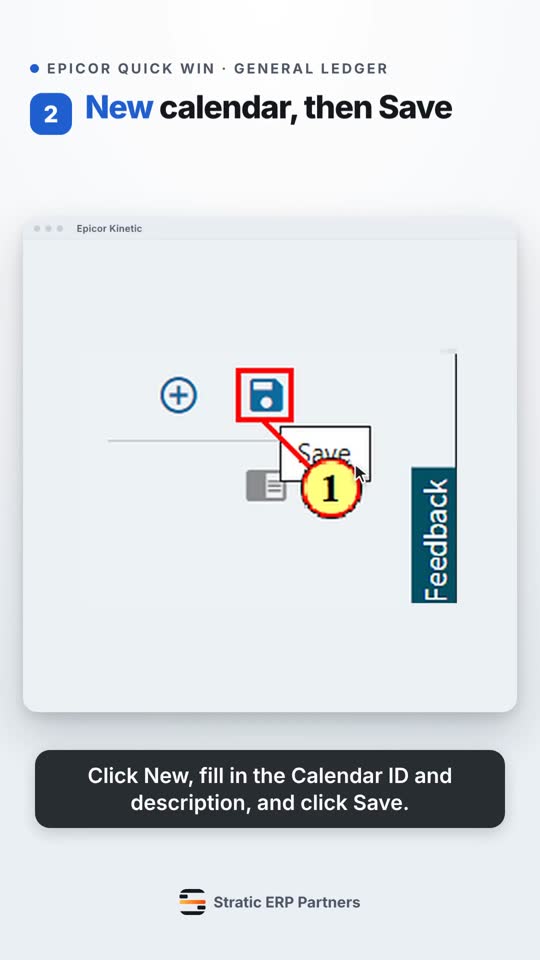
Click New
Fill in the Calendar ID and description
Save, then generate the periods
Screens show Epicor Kinetic with demonstration data. Menus and labels can differ with your version and setup.
Need this set up or automated?
We set it up around how your team works.
Procedures and training built from your own screens, or a rule, screen or report in Epicor Kinetic that takes the repetitive part off your team’s plate. Senior-led, with specialists added as the scope requires.