Follow one order from the first quote to the month-end close. At each stop: where it usually gets stuck, and what we set up, fix or build so it keeps moving.
What we do: implementation, engineering and BOMs, MRP and scheduling, MES, BPMs and Epicor Functions, Application Studio screens, DMT data loads, BAQs and dashboards, SSRS reports, training and support after go-live.
ImplementationEngineering & BOMsMRP & schedulingMESBPMs & Epicor FunctionsApplication StudioDMT data loadsBAQs & dashboardsSSRS reportsTrainingSupport after go-live
ImplementationEngineering & BOMsMRP & schedulingMESBPMs & Epicor FunctionsApplication StudioDMT data loadsBAQs & dashboardsSSRS reportsTrainingSupport after go-live
The life of an order
Follow one order through your shop.
An example order of 200 sheet-metal brackets goes from quote to close. At each stop: where it usually sticks, and what we build so it keeps moving.
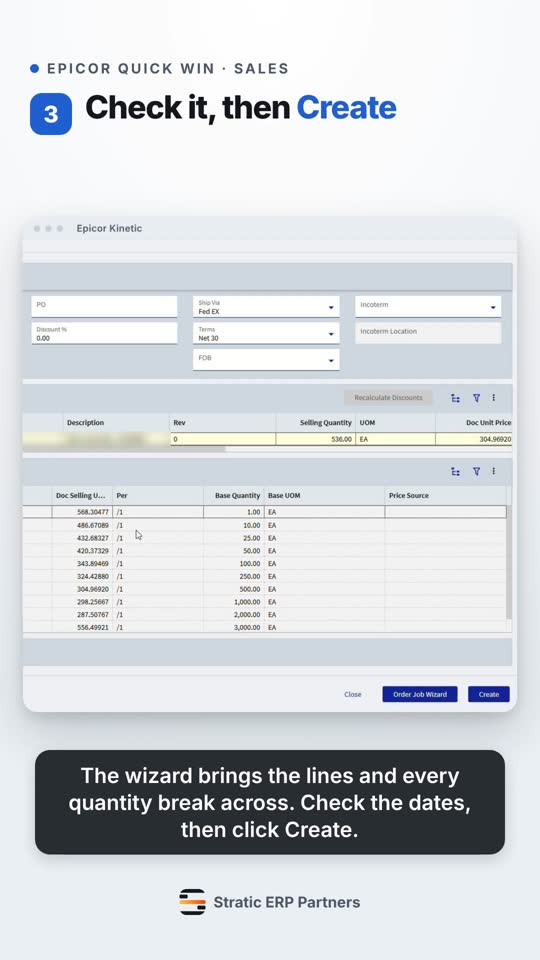
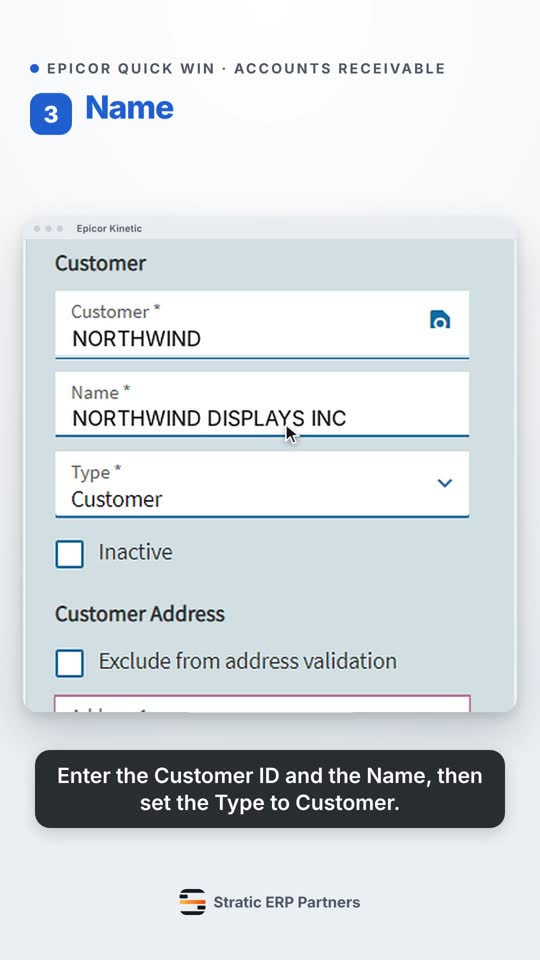
The customer’s request arrives, often as a spreadsheet. Sales prices it in Epicor and turns it into a quote.
Sticks: quote lines retyped by hand from the customer’s sheet, quantity break by quantity break.
We build: a spreadsheet template that loads into the quote with DMT, an Epicor Function that checks it first and a training video for the sales desk.
Data load
Epicor Function
Training video
Customer sheet to quote · example layout
From the customer’s sheet to the quoteExample
SheetBRKT-14GA · qty 25 / 50 / 100 / 2004 rows
CheckEpicor Function: part, quantities, prices✓ OK
QuoteLine 1 · BRKT-14GA · 4 quantity breaksLoaded
Example layout drawn for this page, not a real Epicor screen.
02
Stop 2: Engineer
Engineering defines the part: its bill of materials, operations and the units it is bought and stocked in.
Sticks: part and BOM data that doesn’t match how you buy and stock, like sheet stock counted in square inches.
We build: clean part, BOM and unit-of-measure data loaded with DMT and checked first, and Engineering Workbench and CADLink set up so methods come from the design.
Data load
Setup
Epicor Kinetic · Part entryClip
Clip from our tip “Stock sheet parts by the sheet”.
03
Stop 3: Order
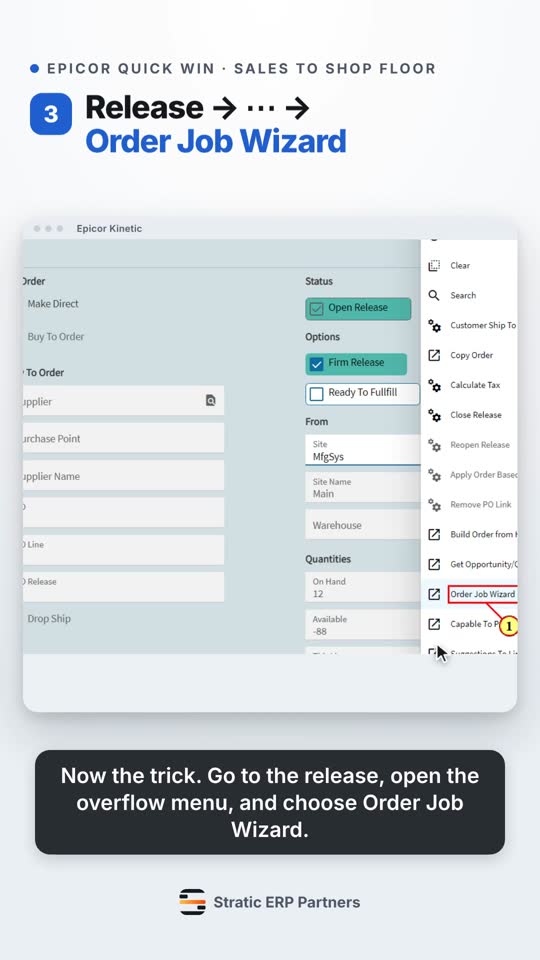
The quote becomes a sales order. Each release gets a ship date and goes on to be made or shipped.
Sticks: the same checks done from memory on every order, and jobs made by hand for each release.
We build: a BPM that runs your checks when the order is saved, and a procedure for the Order Job Wizard.
BPM
Procedure
Epicor Kinetic · Order release
Real screen from our tip “Make jobs from a sales order”.
04
Stop 4: Plan
MRP turns demand into suggestions: what to buy, what to make and when. Scheduling loads the work onto the floor.
Sticks: MRP suggestions nobody trusts, so the real schedule lives on a whiteboard.
We build: planning settings that match how you run, MRP and scheduling set up and tested with your data, and a BAQ dashboard of what planners need to act on.
Setup
Dashboard
Planning dashboard · example layout
This week’s planningExample
BuySteel sheet 14 ga · order by Tue40 SH
MakeJob 000412 · brackets200 EA
ExpediteJob 000398 · due Thu1 job
Brake press load92%
Laser load64%
Example layout drawn for this page, not a real Epicor screen.
05
Stop 5: Purchase
Material is bought on a PO. The steel arrives at the dock and is received against it.
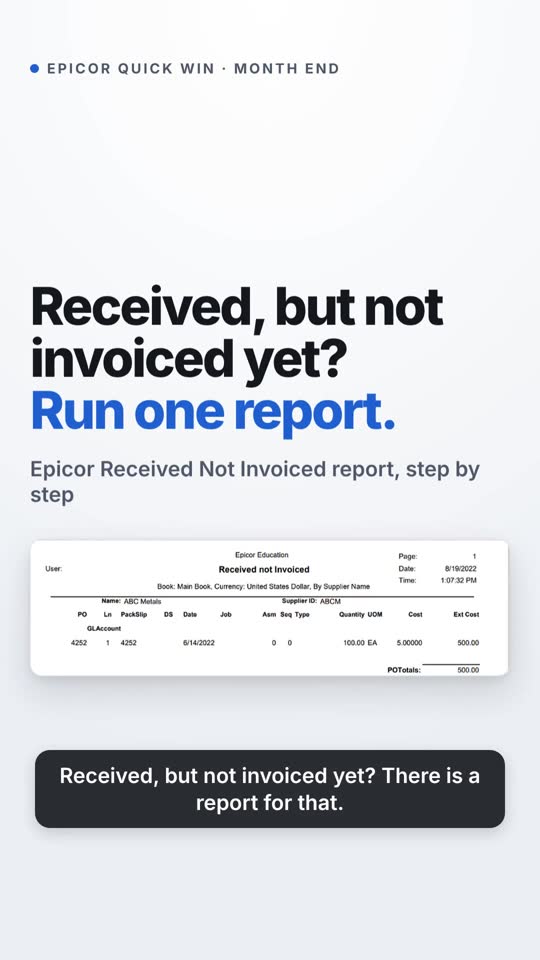
Sticks: receipts with no supplier invoice yet, found at month end instead of in the week they happened.
We build: a BAQ or SSRS report of what’s received but not invoiced, and a BPM that flags a unit that doesn’t match the PO at receipt.
Report
BPM
Epicor Kinetic · Received not Invoiced report
Real screen from our tip “Run the Received not Invoiced report”.
06
Stop 6: Produce
Operators clock in, start the job, report what they made and move material to the next operation.
Sticks: busy screens full of fields nobody on the floor uses.
We build: MES and labour collection set up for your floor, Application Studio screens trimmed to what the operator needs and how-to videos for the terminal.
Custom screen
Training video
Operator screen · example layout
Job000412-1-1
Operation20 · Brake press
PartBRKT-14GA
Resource group—
Labor typeProduction
Shift1
Indirect code—
Expense code—
Setup %0
Scrap reason—
Rework reason—
Discrepant qty0
Lot—
Warehouse—
Comments—
StartReport qtyMove
Example layout drawn for this page, not a real Epicor screen.
07
Stop 7: Control
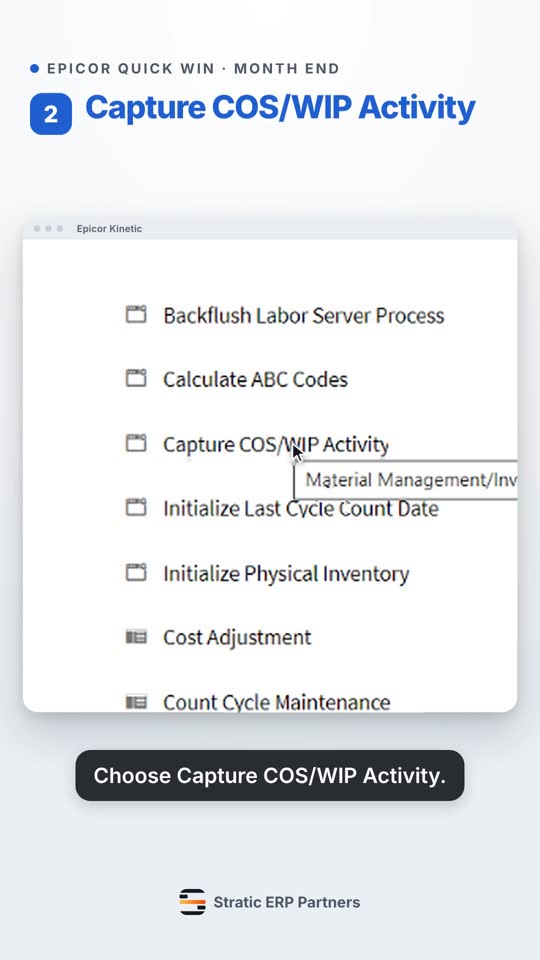
Costs land on the job as it runs. Quality checks the work, and WIP and inventory are reconciled.
Sticks: job costs that don’t tie to the general ledger until someone reconciles them by hand.
We build: job costing and WIP set up to reconcile, quality checks where you need them and cost and margin reporting from Epicor data.
Setup
Report
Epicor Kinetic · Inventory/WIP Reconciliation
Real screen from our tip “Reconcile inventory and WIP”.
08
Stop 8: Ship
The brackets are packed, the packing slip is printed and the order goes out the door to be invoiced.
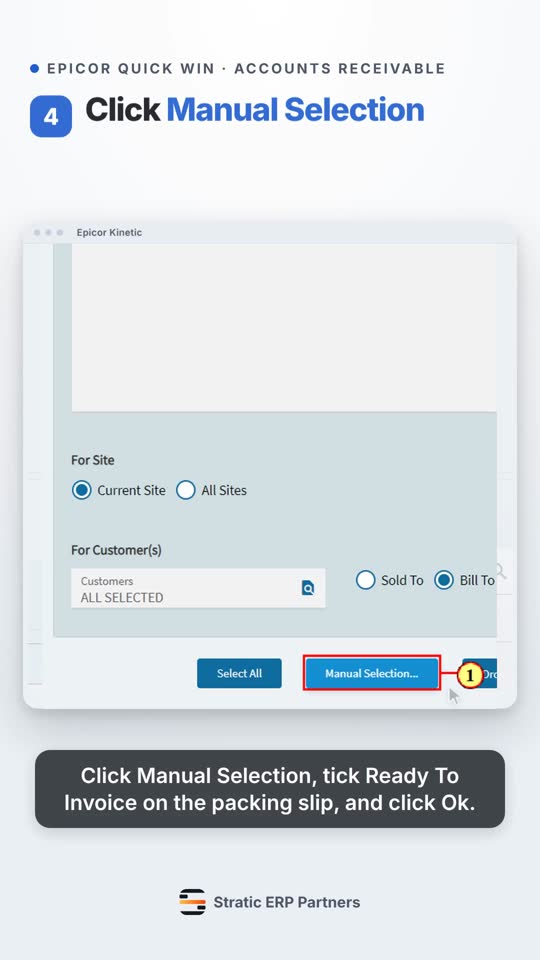
Sticks: shipped but not billed, because packing slips never get marked ready to invoice.
We build: a step-by-step procedure from packing slip to invoice, with real screens, for whoever covers shipping.
Procedure
Epicor Kinetic · AR Invoice Entry · Get Shipments
Real screen from our tip “Invoice straight from a shipment”.
09
Stop 9: Close
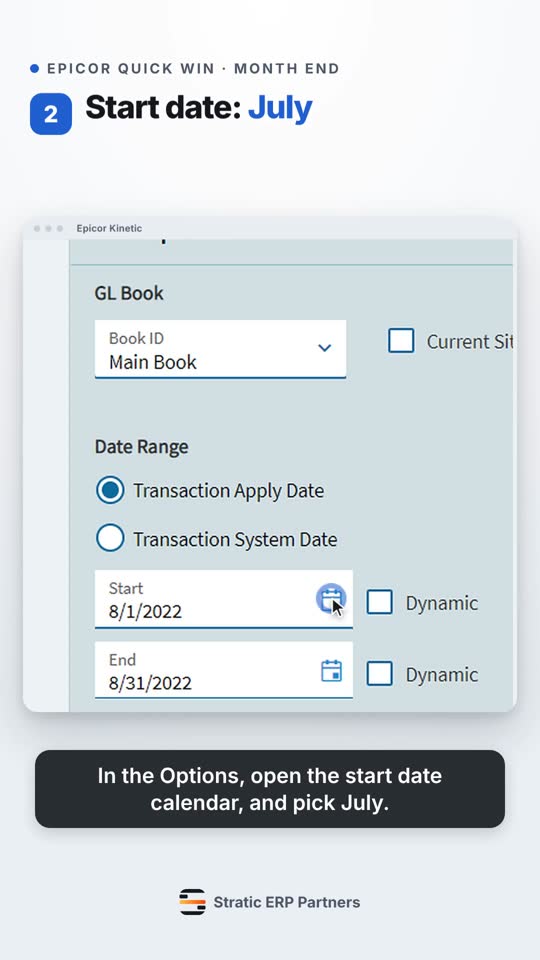
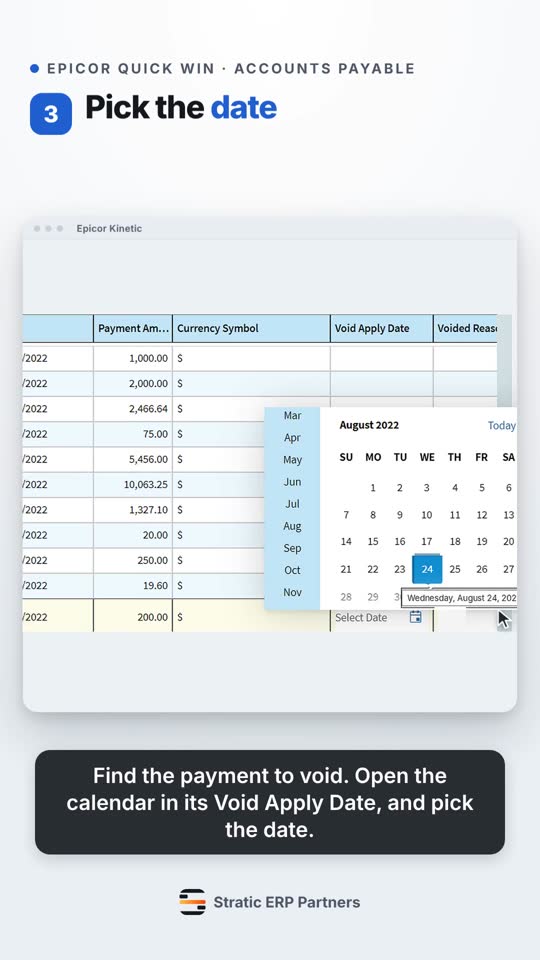
The payment comes back and is applied. WIP and cost of sales are captured and the period is closed.
Sticks: payments keyed in one at a time, and a close checklist that lives in one person’s head.
We build: cash receipts loaded with DMT or a REST API integration, a written close procedure and a BAQ dashboard of what’s still open before you close.
Go-live is when the real orders start. We stay on for the questions, the fixes and the next improvement, with an enhancement backlog, user training and release readiness for each Kinetic Cloud update.